PyreHaven supports Java Edition and Bedrock Edition crossplay. Use play.pyrehaven.xyz everywhere. Most Bedrock players can simply add the server address in Minecraft with port 19132.
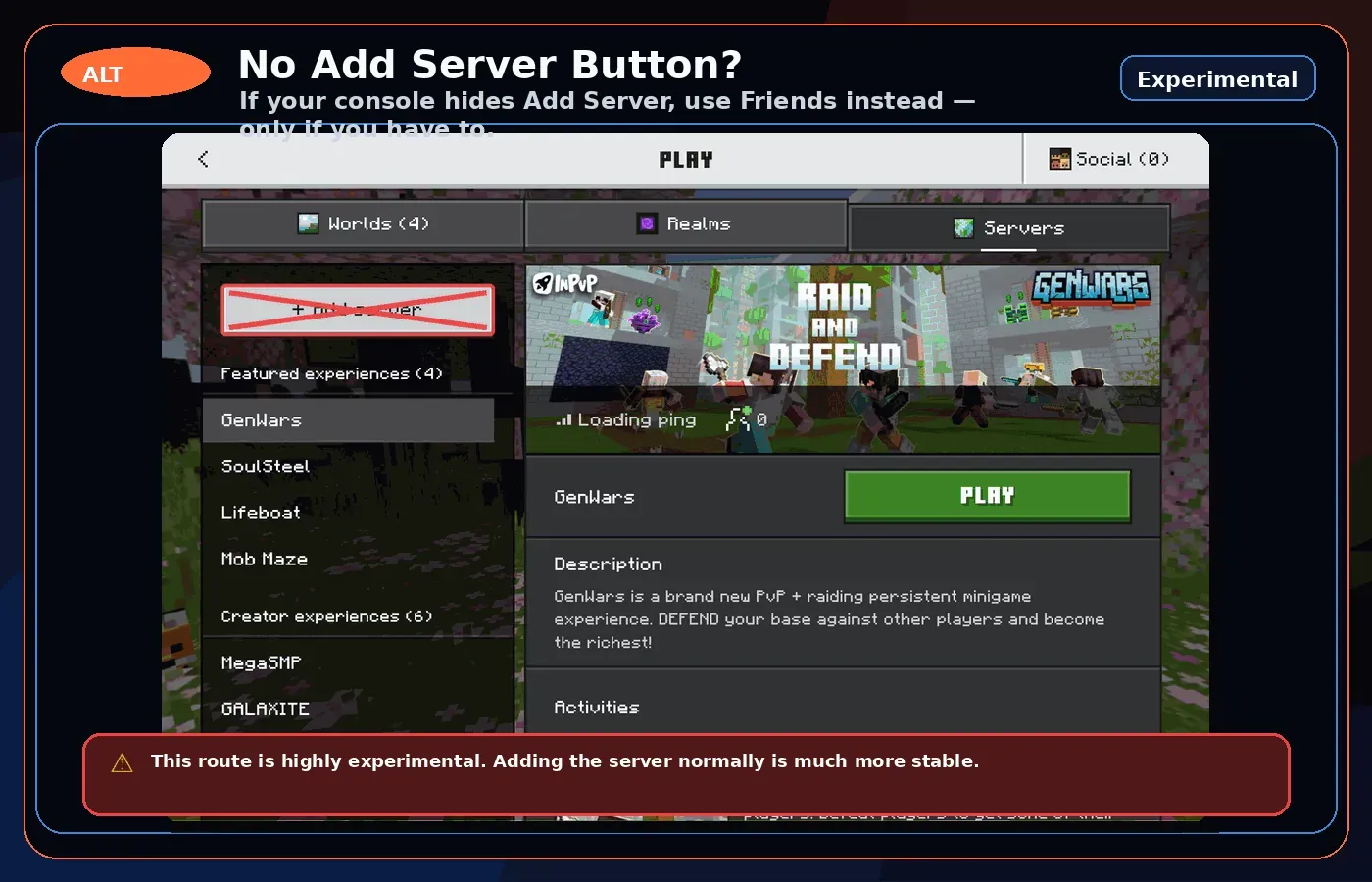
Bedrock players on Xbox, PlayStation, and Nintendo Switch cannot normally add custom servers through Minecraft's server list because those platforms are limited to Minecraft's featured servers. PyreHaven provides a friends-list workaround so console players can join without needing an Add Server button.
Java Edition
Server address:
play.pyrehaven.xyz
Bedrock Edition
Address and port:
play.pyrehaven.xyz : 19132
Java Edition
Join from Java Edition
Use this if you are playing Minecraft: Java Edition on PC. The animated guide below loops through all three clicks with the instructions embedded in the image.
3 step loop
Java server join
Click Multiplayer, add PyreHaven, then enter the Java address.
Launch Java Edition and click Multiplayer.
Click Add Server.
Use play.pyrehaven.xyz, click Done, then join from the server list.
1/3
Java loop: Multiplayer → Add Server → play.pyrehaven.xyz → Done.
Bedrock Edition
Join from Bedrock Edition
Use this for Minecraft: Bedrock Edition on platforms that allow custom servers, such as Windows, Android, and iOS.
3 step loop
Bedrock server join
Press Play, open Servers, then add PyreHaven with the Bedrock port.
Press Play from the Bedrock home screen.
Open the Servers tab and tap + Add server.
Set name to PyreHaven, address to play.pyrehaven.xyz, port to 19132, then tap Add and play.
1/3
Bedrock loop: Play → Servers / + Add server → play.pyrehaven.xyz with port 19132.
No “Add Server” option
Console friends-list workaround
Bedrock players on Xbox, PlayStation, and Nintendo Switch cannot normally add custom servers through Minecraft's server list. Those platforms only show Minecraft's featured servers. PyreHaven provides this friends-list workaround so console players can join the network without needing an Add Server button.
If your device has an Add Server button, use that first because it is the simplest path. This friends-list method is here for consoles that hide custom servers.
If your console blocks Add Server, only then try the Friends list workaround.
Before you use this
This workaround can be unreliable and may change as Minecraft updates.
Use it only on Xbox, PlayStation, or Nintendo Switch when Minecraft will not let you add play.pyrehaven.xyz directly.
If the server account does not appear online, wait a minute, restart Minecraft, or use the normal Add Server method on another device.
3 step loop
Friends list workaround
Search for the PyreHaven account, add it, then join from Friends when it appears online.
Open the Friends tab and tap Search for players.
Search pyrehaven and tap Add on the PyreHaven account.
When PyreHaven shows Online, tap Join. If it fails, the normal Add Server route is still the stable option.
1/3
Experimental loop: Friends → Search pyrehaven → Add → Join when PyreHaven is online.